What is a WiFi QR code?
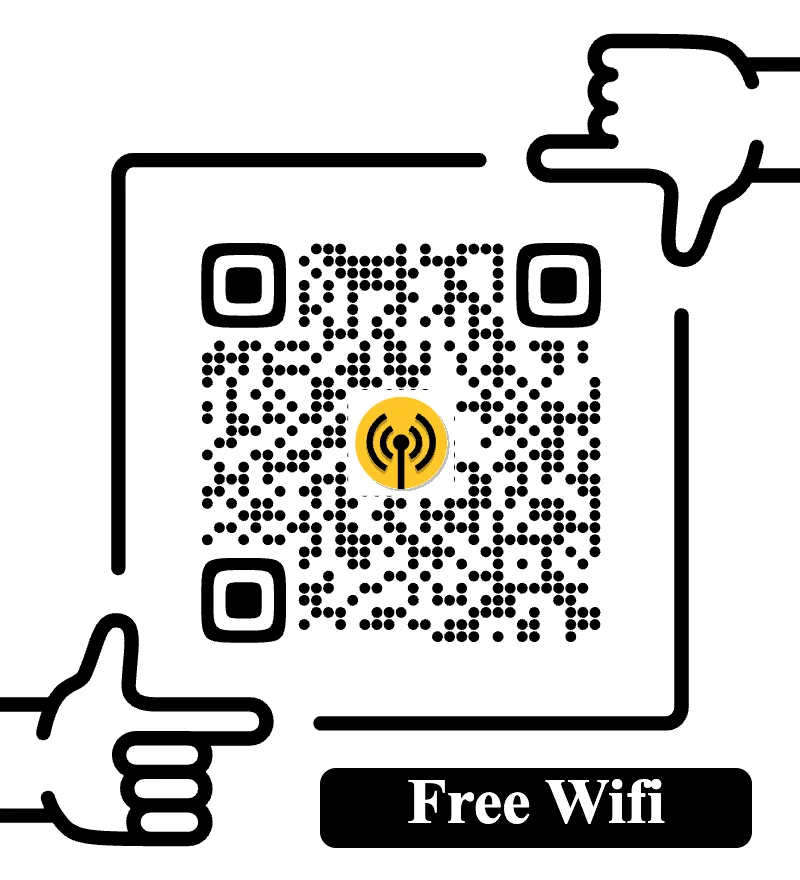
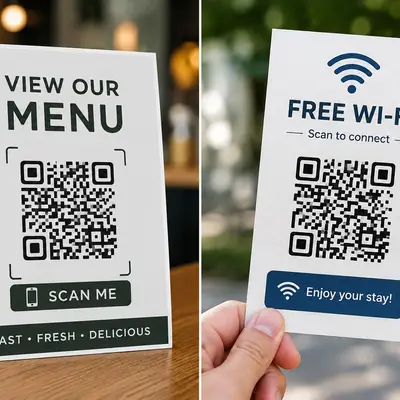
A WiFi QR code lets a guest join your wireless network by scanning a square code instead of typing the network name and password.
To make one, you need three pieces of information: your WiFi network name (SSID), its security type, and the password. Enter those details into a WiFi QR generator, create the code, then test it with a phone before printing or displaying it.
ForQRCode has a dedicated WiFi QR code generator that creates this type of code directly. It can encode the network information, including a hidden-network setting, and lets you download the result for print or screen use.
For a guest network, that means less hunting for the password under the router and fewer repetitions of "Is that a capital O or a zero?"
What is a WiFi QR code?
A WiFi QR code stores the information a compatible phone needs to identify and join a wireless network.
The data is usually represented in a structured string similar to this:
WIFI:T:WPA;S:GuestNetwork;P:examplepassword;;
In that example:
Tidentifies the security type.Scontains the SSID, which is the WiFi network name.Pcontains the password.
There can also be a field that marks the network as hidden.
The ZXing project documents this WiFi configuration format, including fields for WPA, WEP, open networks and hidden SSIDs. It also explains how special characters need to be escaped when they appear in network names or passwords.
For a deeper technical reference, see ZXing's WiFi QR payload documentation.
You normally do not need to build that string yourself. A QR generator takes the information from separate form fields and produces the payload for you.
What do you need before making the QR code?
Find the WiFi details first. Guessing is where most problems start.
You need the exact network name as it appears on your router or device. WiFi names are case sensitive in the QR payload, so GuestWiFi and guestwifi should not be treated as interchangeable.
You'll also need the current password and security setting.
For a typical home or small-business guest network, the router may use WPA or WPA2. Newer equipment may use WPA3 or a mixed security mode. Select the option in the generator that matches your router configuration.
If the network does not appear in the normal WiFi list because its SSID is hidden, mark it as hidden when creating the code.
Do not copy credentials from an old card on the refrigerator unless you have checked that they still work. Connect a phone manually first if you are unsure.
How to create a WiFi QR code step by step
The actual setup is short.
1. Open the WiFi QR generator
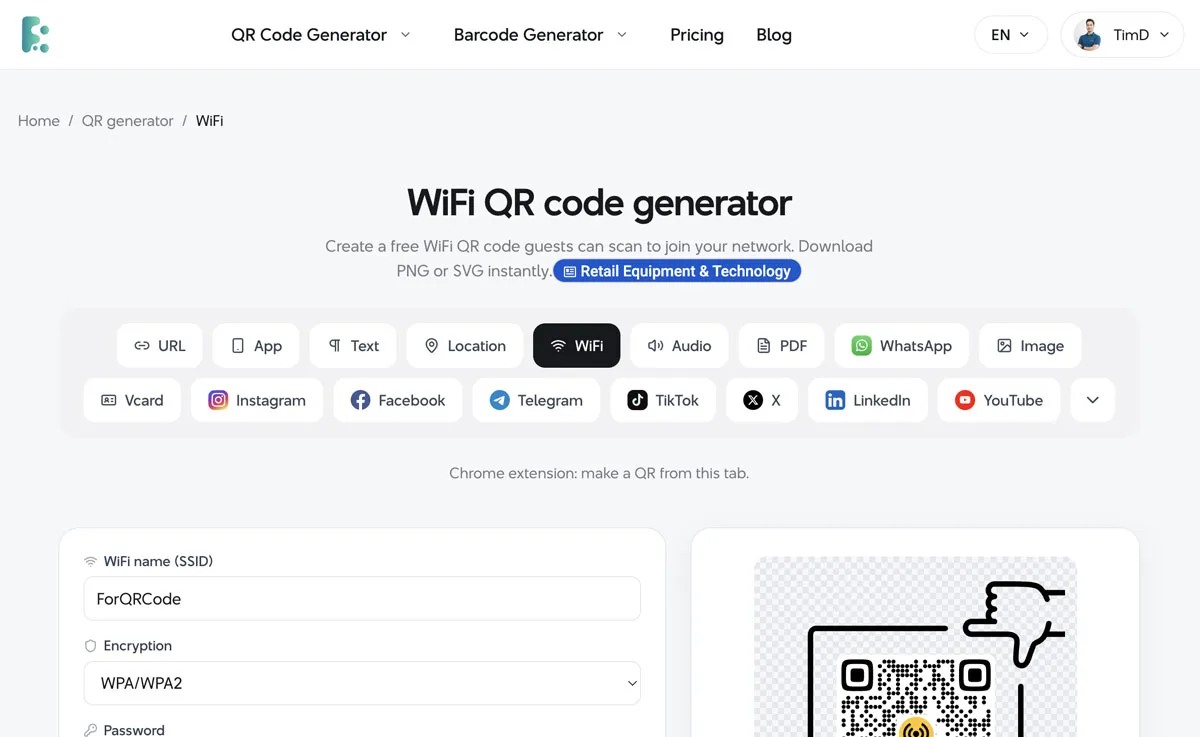
Go to the ForQRCode WiFi QR code generator.
The generator is already set to the WiFi payload type, so you can start entering the network details immediately.
If you need another type later, such as a website, vCard or text code, the main free QR code generator covers the other supported payloads.
2. Enter the WiFi name
Type the SSID exactly as configured on the router.
For example:
ForQRCode_Guest
Do not enter the name of the router manufacturer unless that is actually the network name.
A guest QR code is a good moment to check whether you already have a separate guest network. If your router supports one, using it can keep visitors away from the network used by computers, storage devices, printers or other equipment you do not intend to share.
ForQRCode specifically recommends printing a guest SSID rather than exposing administrative network credentials when possible.
3. Choose the security type
Select the security setting used by the network.
This matters. A correct password paired with the wrong security type may produce a QR code that contains valid-looking information but does not connect properly.
If you do not know the setting, check your router's administration interface rather than guessing.
Open networks are different because there is no password to encode. The commonly used WiFi QR syntax allows a no-password configuration as well.
4. Enter the password
Type the WiFi password carefully.
A QR code does not know whether you made a typo. It will faithfully encode whatever you entered.
If the password contains punctuation such as semicolons, commas, quotes, colons or backslashes, use a generator rather than manually constructing the payload. The WiFi format requires some special characters to be escaped correctly.
5. Set the hidden-network option if needed
Most guest networks broadcast their SSID, which means visitors can see the network name in their WiFi settings.
If yours does not, turn on the hidden-network option in the generator.
The WiFi QR format has a field for this case. ForQRCode exposes the option directly in its WiFi generator.
Unless you deliberately configured a hidden SSID, leave this setting off.
6. Generate and customize the code
Once the network details are entered, generate the QR code and look at the preview.
You can keep it plain black and white or change its appearance. ForQRCode supports colors and logo customization as well as downloads for print and digital use.
Keep contrast strong. A dark QR pattern against a light background is easier for cameras to recognize than two similar colors.
A café may want its logo in the center. A rental property probably does not need anything more complicated than the code and a short label saying "Guest WiFi."
The phone does not care whether the QR code matches the curtains.
7. Download it
ForQRCode allows QR codes to be exported as PNG, SVG, PDF or EPS. PNG works well for a screen or ordinary document. Vector formats such as SVG are more convenient if a designer needs to resize the code for signage or professional printing.
Do not crop the blank margin tightly around the QR code after downloading it.
That clear area helps scanners recognize where the symbol begins and ends.
Test the WiFi QR code before guests use it
Testing takes a minute and catches the annoying mistakes.
Use a phone that is not already connected to the guest network. If the device already remembers the network, forget it temporarily so you are testing the QR code rather than a saved configuration.
Scan the code.
Check that the phone identifies the right network and offers to join it. Then connect and open a website to confirm that the network itself has internet access.
Android has built-in support for sharing WiFi access through QR codes on supported devices. Google's Android Help documentation describes generating a QR code from the connected network's Share option so another device can scan it and join.
See Google's instructions at Android Help: connect to and share WiFi networks.
Try an iPhone and an Android phone if your guests use a mix of devices. Older hardware, unusual camera apps and managed corporate phones can behave differently.
If you want to inspect the contents of the finished code, upload it to the free QR code reader. The reader displays the encoded payload, which makes it useful for spotting the wrong SSID or other input mistakes.
Where should you put a guest WiFi QR code?
Put it where someone naturally looks for connection information.
In a home, that might be a small card in the guest room or entry area. A vacation rental can place it in the welcome folder. Cafés often put the code near the counter or on tables.
Offices can display one in reception or meeting rooms instead of handing visitors the main office password.
There is one practical condition: the network should have a usable signal where you display the code. A beautifully printed WiFi QR card in a dead zone is mostly a promise the router cannot keep.
ForQRCode recommends placing guest codes where the WiFi signal is already strong.
Avoid displaying private-network QR codes in windows, public hallways or other places where anyone passing by can photograph them.
Is the WiFi password hidden inside a QR code?
Visually, yes. Secretly, no.
People cannot read a WiFi password just by looking at the square pattern, but the password is part of the encoded payload when the network requires one.
Anyone who can decode the QR code can potentially retrieve the stored WiFi information.
A QR code should therefore be treated as another way of distributing the password, not as encryption for the password.
That is another reason to use a guest network.
If someone photographs the card and sends it to somebody else, that copy can continue working until you change the WiFi credentials.
Should guests use your main WiFi or a guest network?
A dedicated guest network is generally the cleaner setup when your router provides the option.
It lets you give visitors internet access without intentionally handing out the credentials for the primary network.
Exactly what isolation a guest network provides depends on the router configuration, so check your hardware rather than assuming the word "guest" automatically secures everything.
For a café, office or rental property, a separate guest SSID also makes password changes less disruptive. You can change the guest credentials without reconnecting every employee laptop, TV, printer or household device on the primary network.
Once the password changes, though, the old QR code becomes outdated.
What happens when you change the WiFi password?
You need a new QR code.
WiFi QR codes are normally static. The credentials are stored directly in the QR payload rather than fetched from a server every time somebody scans.
Changing the password on the router does not rewrite a QR code already printed on a card.
Update the router, create another WiFi QR code using the new password, test it, and replace the old copies.
ForQRCode recommends replacing printed guest codes when rotating passwords, particularly after events.
This differs from a dynamic URL QR code, where the website destination may be changed through a redirect. A WiFi password has to be present in the WiFi payload presented to the device.
You can read more about QR payload behavior in the QR code guide.
Why won't my WiFi QR code connect?
Start with the boring checks. They fix most cases.
Confirm the SSID character by character. Then check the password and security type.
If the SSID is hidden, make sure the QR code says so.
Move closer to the access point as well. A QR code can be technically perfect while the network itself is too weak to establish a usable connection.
If the phone recognizes the QR pattern but does not join the network, try entering the same credentials manually. That separates a QR configuration problem from a router or WiFi problem.
Enterprise networks can be another issue. Simple guest WiFi codes are best suited to ordinary personal or pre-shared-key configurations. Enterprise WiFi can require identity, authentication methods, certificates or other settings beyond a normal SSID and password. ZXing's documented syntax contains fields for some WPA2-EAP configurations, but compatibility should be tested with the devices that will use the network.
For a guest network, simpler is usually easier to support.
Should you put a logo on a WiFi QR code?
You can, but don't make the logo the main event.
A small centered logo can make a printed card easier to associate with your business or property. It also covers some of the QR pattern, so leave enough of the code intact and use strong contrast.
Test the customized version, not only the plain QR code you started with.
For a card sitting beside the router in a vacation rental, branding probably adds little. On a hotel information card or café table sign, it may make more sense.
Function comes first. Guests only care that the network joins.
FAQ about guest WiFi QR codes
Can an iPhone join WiFi by scanning a QR code?
Modern phones can recognize QR codes with their camera or built-in scanning tools, but device and operating-system behavior can vary. Test your WiFi QR code on the devices your guests are likely to use.
Can Android create a WiFi QR code?
Yes. Google documents a Share option in Android's WiFi settings that generates a QR code for the connected network on supported devices.
Does a WiFi QR code reveal my password?
The password is encoded in the QR payload for password-protected networks. Someone with access to the code may be able to decode it, so do not treat the QR pattern as a way to keep the password secret.
Does a WiFi QR code expire?
The QR code itself does not expire because of time. It stops being useful when the encoded network information no longer matches the router, such as after you change the SSID, password or security configuration.
Can I use a WiFi QR code for an open network?
Yes. The common WiFi QR payload format supports networks without a password.
Can I use one WiFi QR code forever?
Only while the encoded credentials remain correct. If you change the network name or password, make a new code and replace the old one.
Do guests need a special QR scanner app?
Many current smartphones have QR scanning built into the camera or operating system. Compatibility varies, so keeping the network name available as text nearby is useful for anyone who cannot scan the code.
A small card saves a surprising amount of typing
A guest WiFi QR code is one of the simpler QR uses because the action after scanning is obvious: connect to this network.
Use a separate guest SSID when practical, enter the network details exactly, and print the QR code somewhere guests can find it without exposing it more widely than necessary.
Then test it with a phone that does not already know the network.
You can create the finished code with the ForQRCode WiFi QR generator. When the guest password changes, generate a fresh one.